
Equalization (EQ) feature
Equalization (EQ) presets allow you to create and use customize sound profiles to match your specific hearing preferences. You can create new presets by manually adjusting gains of frequency bands or by using audiogram data.
NOTE: If your are using hearing aids as your listening device, the sound from HeardThat is shaped by the custom fitting of your hearing aids as programmed by your audiologist. You probably don’t need to use EQ in addition to that.
Creating a New Preset
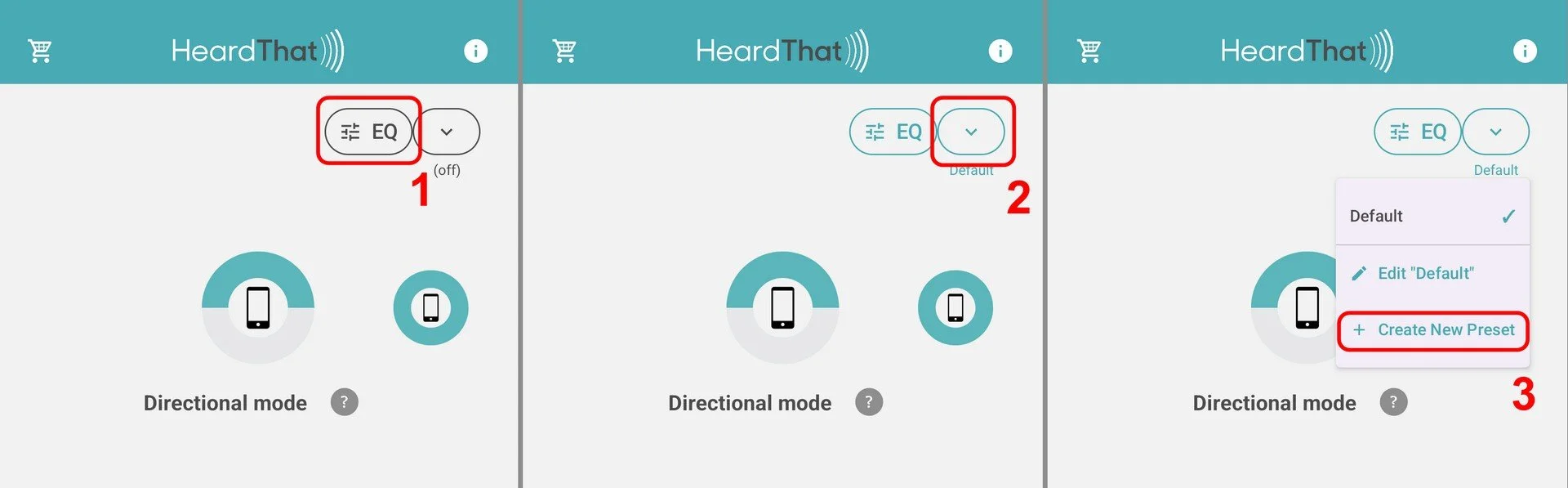
From the app's main screen, ensure EQ is active by tapping the EQ button at the top of the screen.
Tap the dropdown arrow next to the EQ button
Select + Create New Preset from the menu.
You will be taken to the preset editing screen, which defaults to the name "New".
2. Customizing Your Preset
You have two methods to customize your new preset: setting equalizer gains manually or providing audiogram data.
NOTE: You can create and edit a preset while a HeardThat session is active, so you can hear the effect immediately.
Method A: Manual Equalizer Adjustment
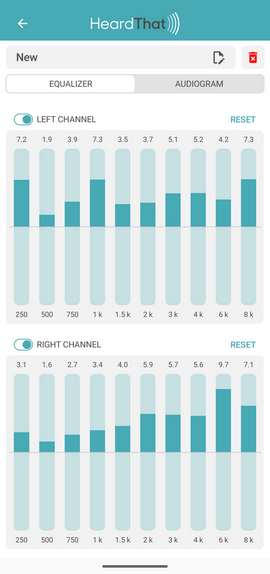
On the EQUALIZER tab, you will see a set of vertical bars for each ear, one per frequency band (250 Hz up to 8 kHz).
Tap anywhere on a bar, or drag up and down, to set that band's gain: above the center line boosts, below it cuts. The number above each bar shows the current gain in dB.
Each ear has its own on/off switch next to its name. A channel that is off shows grey bars; tapping any bar turns the channel on and applies your adjustment in one step. Use Reset to return a channel to flat (0 dB).
Adjust the bands for both channels as needed to achieve your desired sound profile. The gain you set is the gain you get: a band set to +6 dB boosts that frequency by 6 dB.
Tap the name to change it.
On iPhone, tap the back button (left arrow at the top) to save the preset. On Android, tap Save to keep your changes, or Cancel to discard them.
NOTE: Bluetooth earbuds and hearing aids that use the phone-call connection carry a single channel, so both ears hear a blend of the left and right settings. On iPhone this applies to AirPods and, on iOS 26.2 or later, to most other Bluetooth devices as well. Wired headphones, Made for iPhone hearing aids and Bluetooth devices on the media connection keep the left and right settings separate.
Method B: Use audiogram values
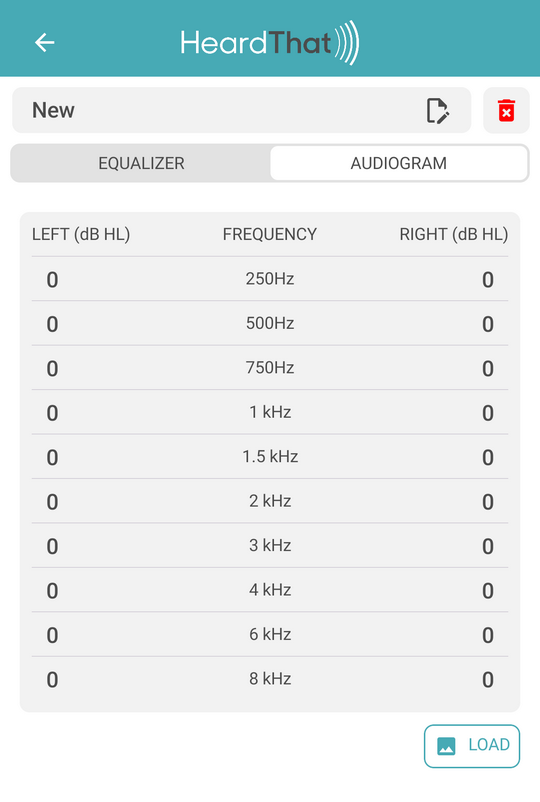
This method uses your clinical audiogram data (or perhaps data from a hearing test app) to create a personalized EQ setting. You can enter the data manually or have the app read it from an image (or Apple Health, on an iPhone).
1. Navigate to the AUDIOGRAM tab and choose one of the following options.
Enter data manually
Tap on the number field corresponding to a specific frequency for either the Left or Right ear.
Use the on-screen keypad to enter your audiogram value for that frequency and tap OK.
Repeat for all available data points. The app will automatically interpolate values for any frequencies you do not enter.
Load data from an image
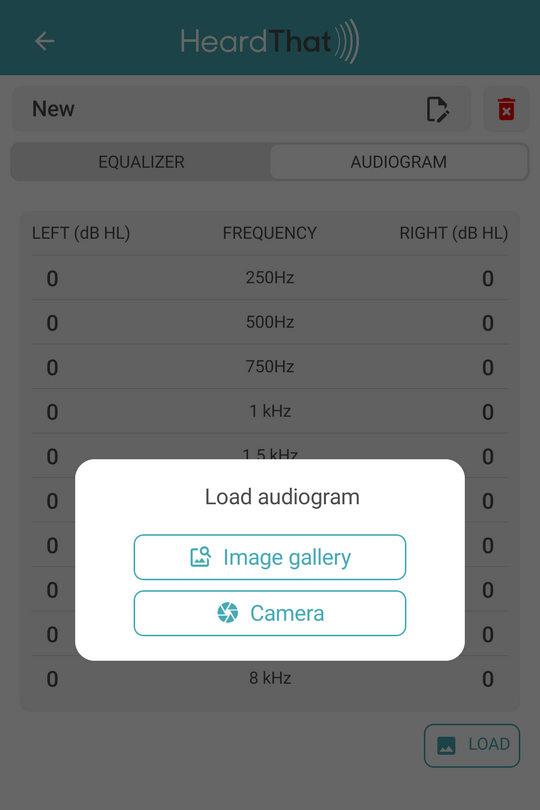
Tap the LOAD button.
Choose Image gallery to select an existing picture of your audiogram or Camera to take a new one.
On iPhone, you have an additional option to load an audiogram stored in Apple Health.
Navigate to and select the image. The app's AI will analyze the audiogram in the image and automatically populate the hearing loss values in the table.\
2. Once your audiogram data is populated, tap the APPLY TO EQ button at the bottom. The app will convert the audiogram values into corresponding gain values on the EQUALIZER tab.